

Failures and defects
You indicate a technical problem and its impact, e.g. machine stopped. The staff has a starting point to assess the situation.
Report-King - Company and customer reports
Equipment failure, missing parts or employee data change. Collect the information you need in one place and forward the case for further processing.
Responsible person sees description, priority, associated assets, and status. It's easier to determine what the problem is and what needs to be done.

Fewer follow-up questions
Still needs to be determined which piece, where it is and what happened. The form helps you collect this information right away.
When you start from the hardware record, some of the context is already filled in. Depending on the view and device, you enter the code, use the camera or available NFC support.
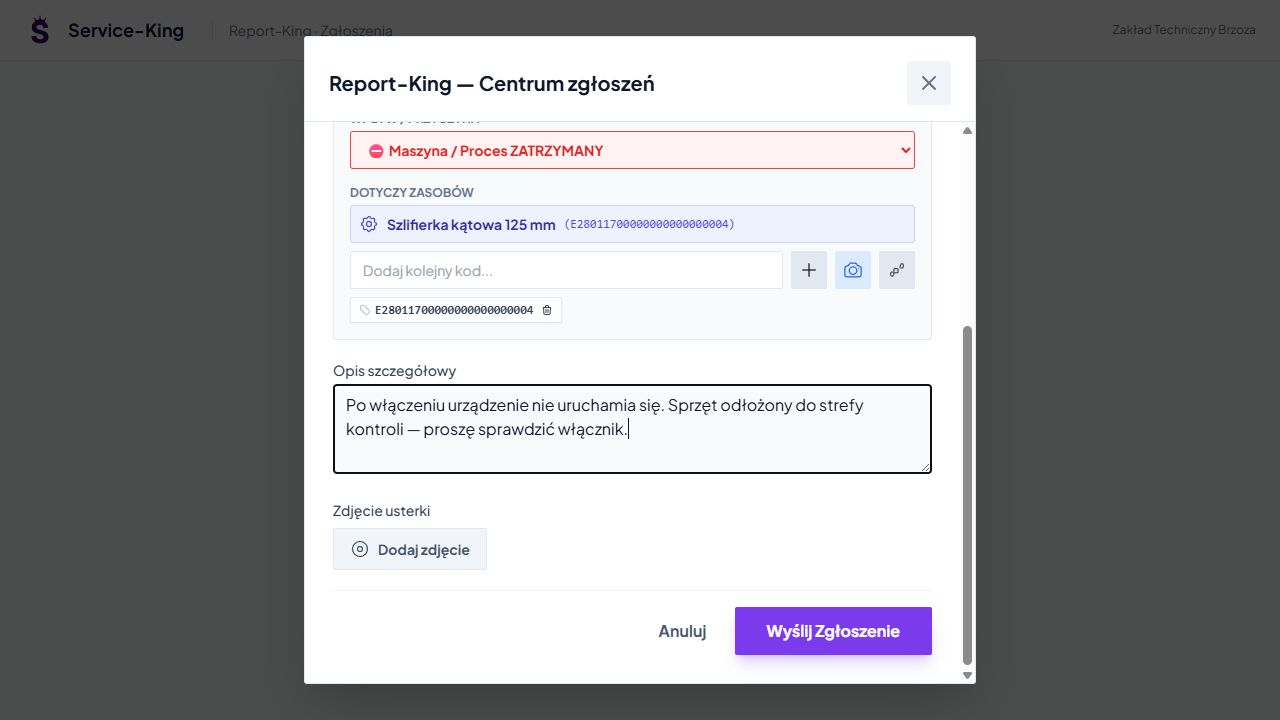
The case type determines what information you provide and who handles it.
You indicate a technical problem and its impact, e.g. machine stopped. The staff has a starting point to assess the situation.
You describe the item you need, quantity and details helpful in purchasing. The person in charge can verify the need.
In the customer and sub-organization workflow, you provide the data of a new person or change: name, surname, position, sizes and other form fields.
The "Employees" tab is available according to your organization's configuration and permissions. Accepting data does not create a login account or confirm the issuance of clothing.
Counters, search engine and priority filter help you find the right case in the ticket center.
Cases awaiting receipt and review.
Requests accepted for which further processing has been arranged.
Resolution result with response to return to.
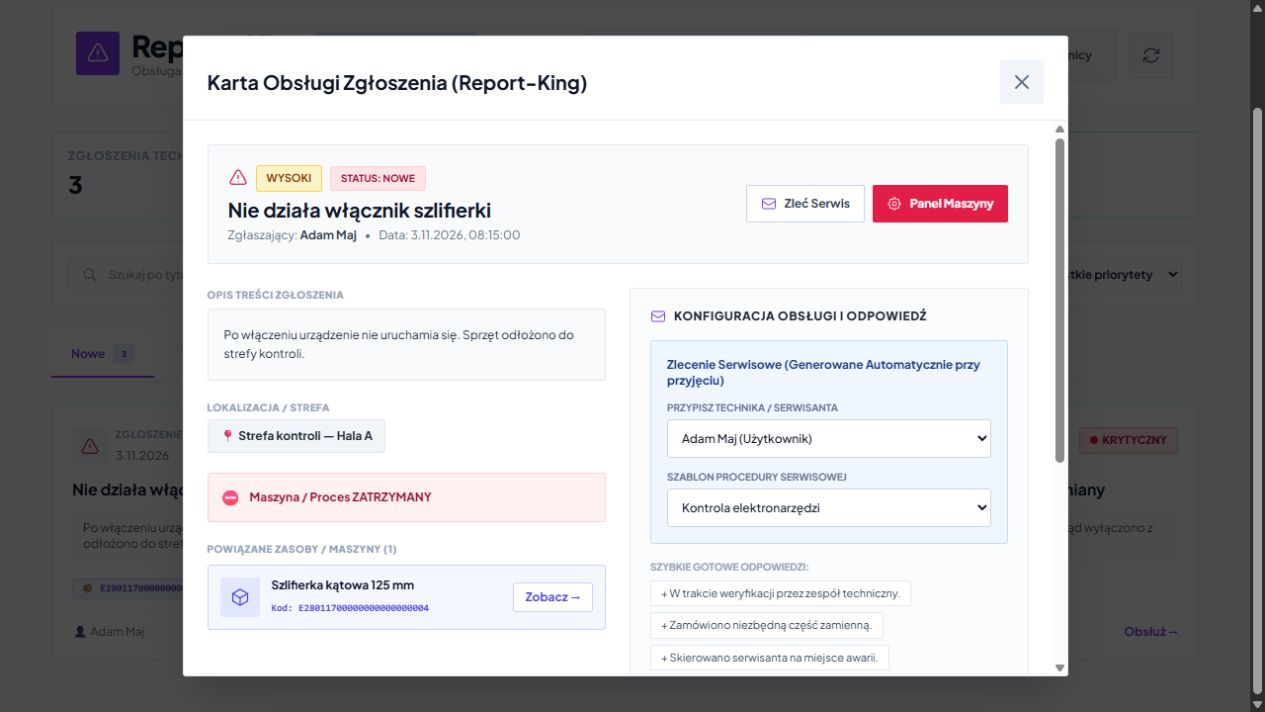
Answer, performer and result
You have it on your card description, submitter, date, location and identified equipment. You save your answer, use the prepared comments and select further status.
You can refer a technical issue to the service team by selecting technique and procedure. The method of creating the work depends on the workflow used.
Receipt of the request begins the service. You document the activities performed, results and acceptance in the service workflow. In employee matters, only the appropriate operation updates the file or assignment.
Each stage has a purpose: collect data, take up the case and record the findings.
Choose your identification method according to your workplace and the devices you use.
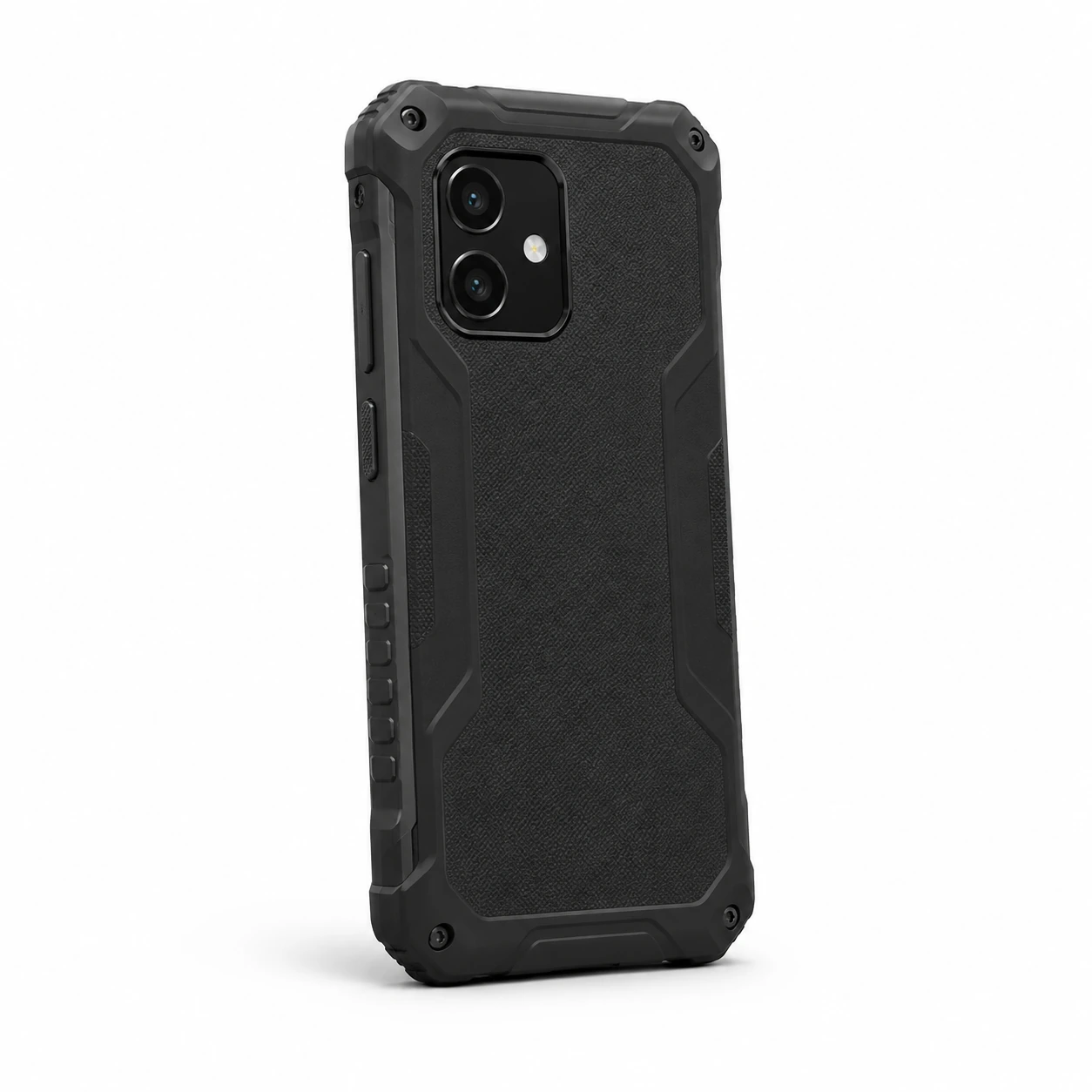
You describe the symptom and add a photo before the details get lost in calls and messages.
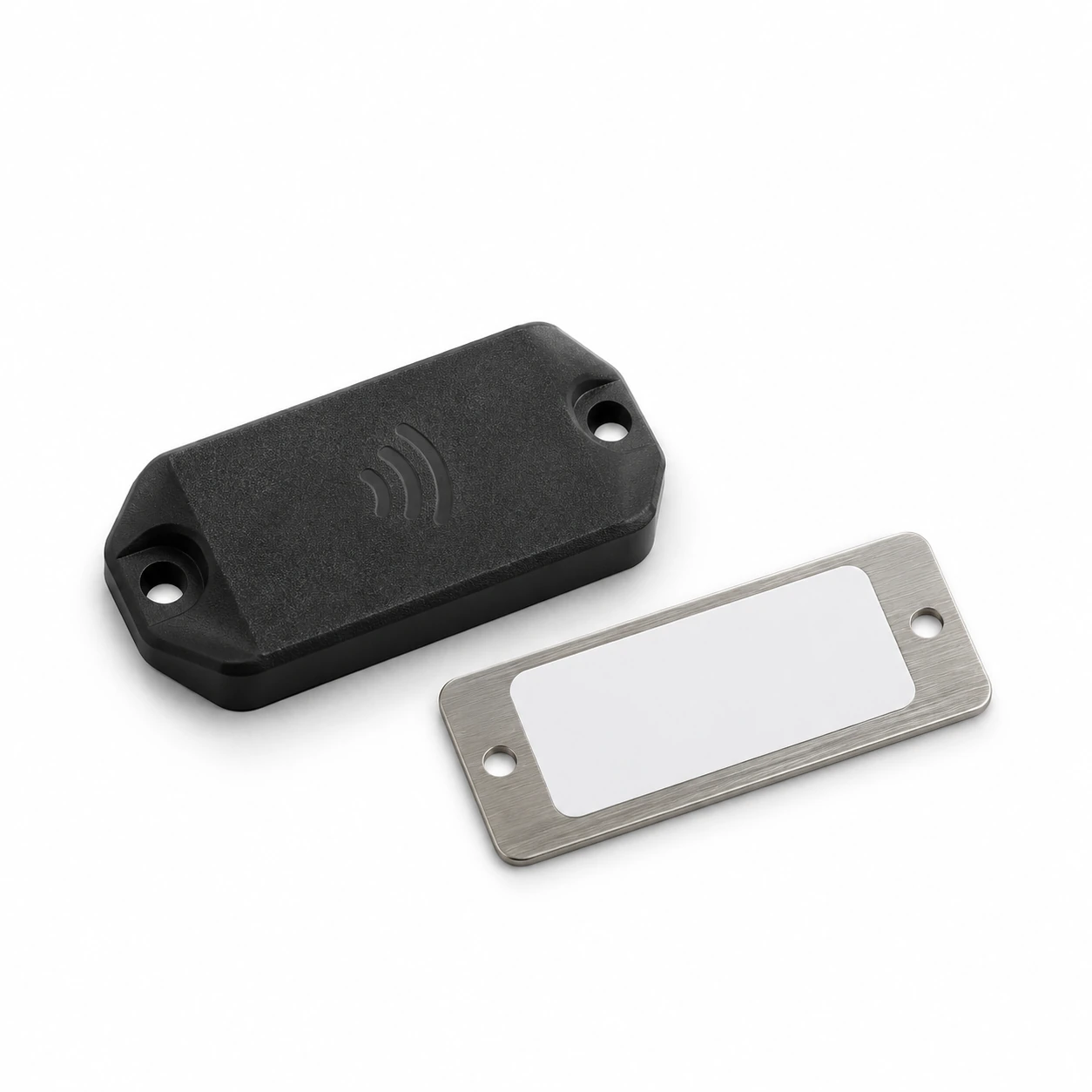
A code or tag associates a description with a specific asset. NFC identification requires a compatible device and support for the view.
Hardware illustrations are for illustration purposes only. We select the equipment recognition method according to the devices, markings and selected circuit.
Free consultation
Let's choose one type of report. We'll show you how collect the necessary data and connect it with further support.
Just an example of a typical problem and a brief description of the current reporting method.
Write which matters you want to sort out first.
Practical knowledge