

Skip to content
Service-King

Maintenance and service

Requests, repairs and inspections. Under control.

Service-King organizes your work from noticing the problem to receiving the actions performed. You connect the notification with the place, device, date and contractor.

The technician uses the prepared template. The team sees what needs to be done, who does it and what result was recorded.
  • Action templates
  • Technician tasks
  • Parts and History
Sample data in the applicationEnlarge preview
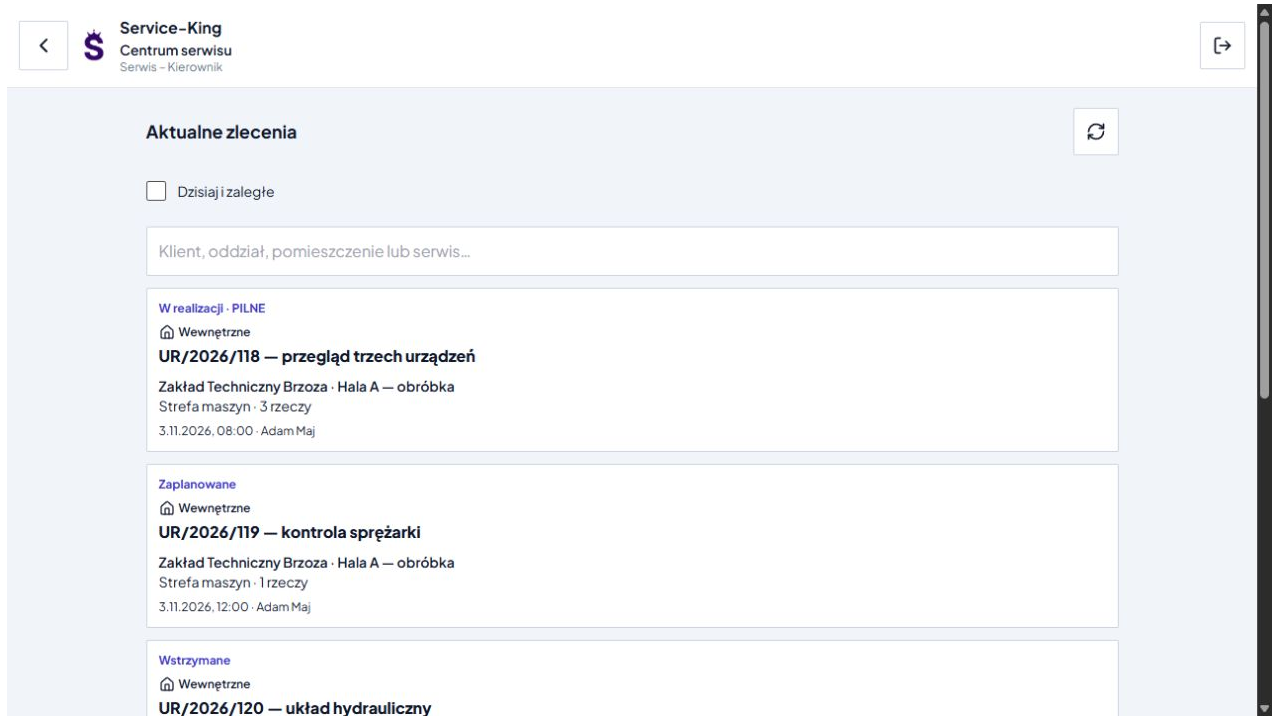
Current jobs in the Service-King Service Center with priority, date and job location
The manager sees the work stage, place, date and assigned technician.

Shared information for the team

Who should do what and when?

In case of a breakdown, you need symptoms, a responsible person and an established scope of work. This information stay in the system and help pass the task to the next shift.

01

Operator reports a problem

Indicates the device, describes the symptoms and may attach a photo. The need for service is stored in the context of the place.

02

Manager plans service

Verifies the application, selects the scope and template, sets a deadline and assigns a contractor.

03

The technician records the result

Checks the location and activities to be performed. It documents the work and indicates what requires further service.

From need to recorded history

What does the UR process look like at Service-King?

Expand a step to see its role in the flow. Reporting, execution and acceptance have their own stages.

From a machine breakdown to the technician’s work and the recorded history — each maintenance stage stays in one workflow.
01. You recognize the device
You indicate a machine or equipment from the register. QR, barcode, NFC or UHF help find the right item, depending on the screen and reader used.
02. You are reporting a problem
You write down your symptoms, location and photo. Report-King and quick service requests allow you to keep the need for service and further arrangements in the appropriate workflow.
03. You establish liability
The service person checks the request, priority and scope needed. Determines who will handle the case.
04. You choose a template and a date
You use the procedure, select the place and devices and assign the contractor. You prepare one-off or recurring service.
05. You prepare parts and tools
The technician checks the machine card, documentation and necessary equipment. The new part may come from the warehouse or from the employee's equipment.
06. You write down the result of each item
One report may cover several devices. Each has its own activity list, result, comments and photos. Position navigation helps you go through the entire range.
07. You confirm execution and receipt
You collect signatures for the entire application or individual items. The manager checks the submitted performance and approves the result.
08. You preserve history and plan further work
Works remain in history. For follow-up, you write down the reason, person and date. The next cyclical service results from configuration and completion approval.

Templates and planned inspections

You prepare the procedure once. You benefit from it in subsequent works.

You save in the template checkpoints, frequency and possible severity. You select it for general work, zone or department, or equipment by product name.

One procedure can serve multiple items. Each piece retains its own ID, score and history.

Template changes apply to subsequent orders. Previous saves retain the scope of activity used during execution.
Sample data in the applicationEnlarge preview
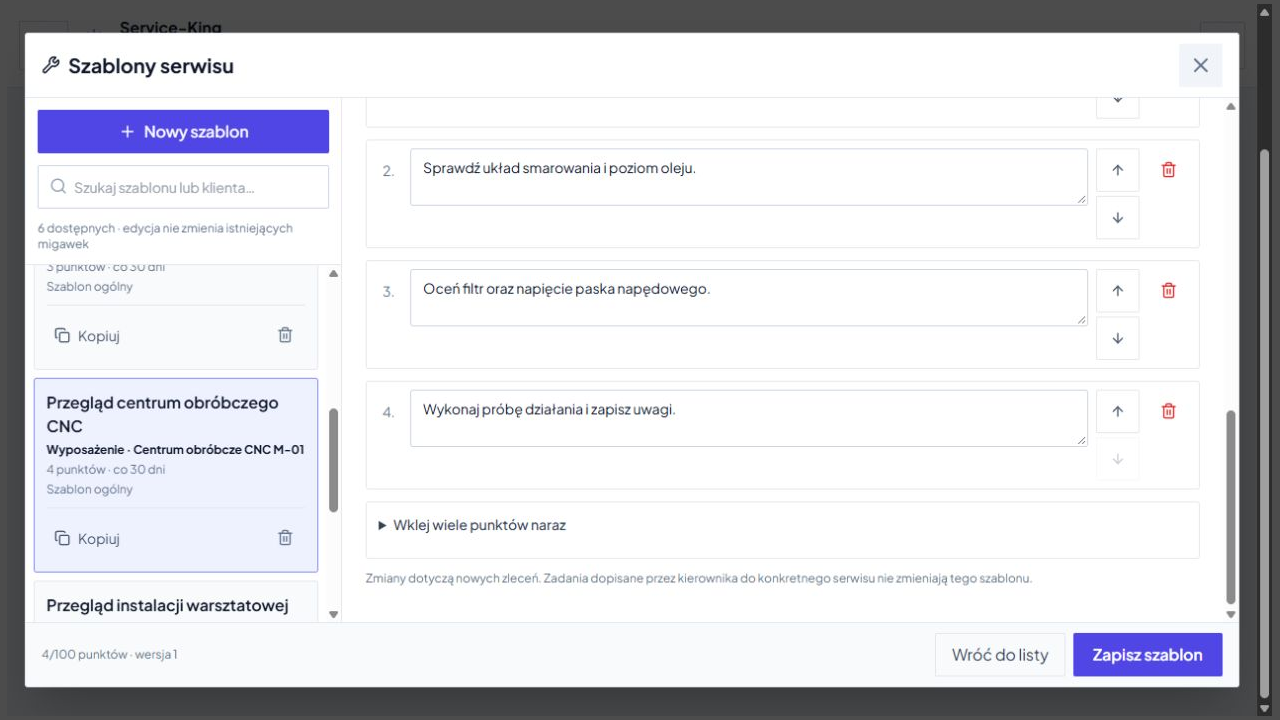
Service-King CNC Inspection Template with Operation List and Equipment Templates
You save permanent checkpoints in the template for subsequent reviews.
Sample data in the applicationEnlarge preview
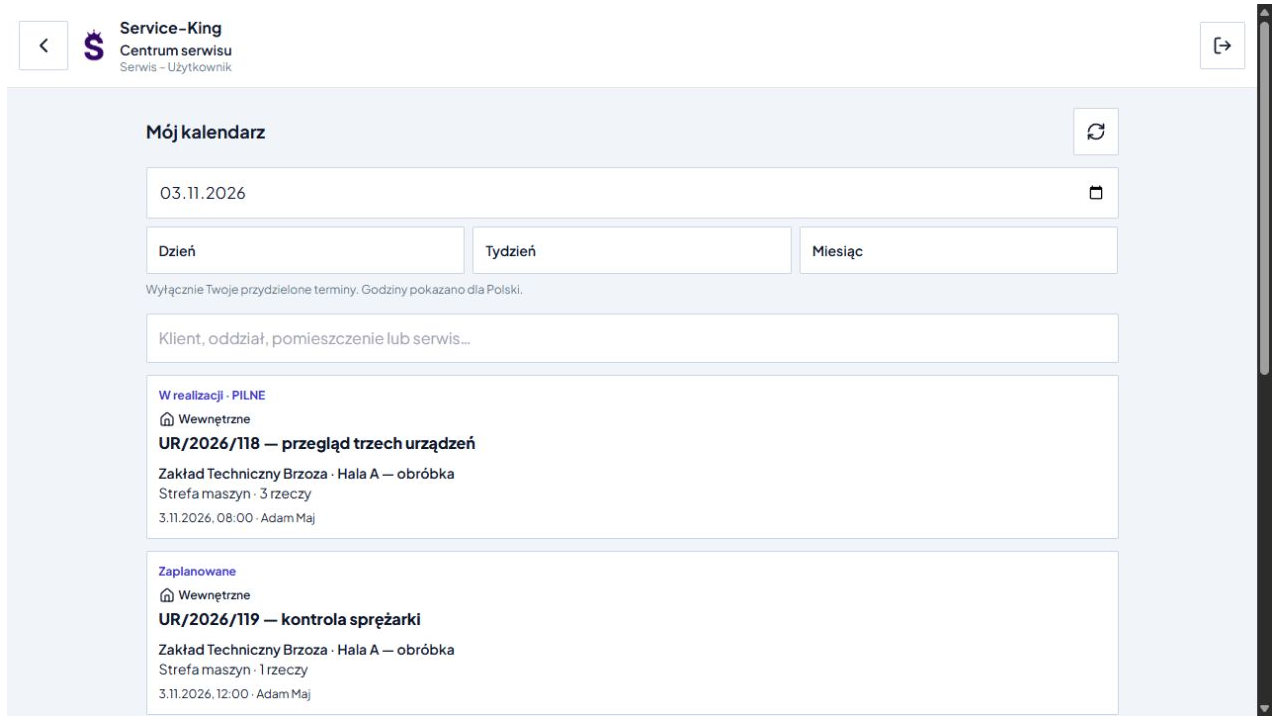
Technician calendar in Service-King with day, week and month selection and assigned services
Technician checks own assigned times and work locations. The calendar has an appointment list layout.

Custom tasks and deadlines

The technician knows where and when to work.

Simplified panel shows your own orders, calendar, history and matters for further handling. Next to the task, you can see the place, date and scope of work.

  • Day, week or month: list of assigned visits for the selected period.
  • Indoor or outdoor location: task context and external visit address, if provided.
  • Manager panel: planning, templates and execution approval.

One report, several devices

Separate result for each item.

The hall inspection may cover several machines. You serve them one by one, with your own action list and documentation for each item.

  • Checkpoints: OK, No OK or Not applicable.
  • Result: completed, further work, waiting for parts or external service.
  • Notes and photos: a description of what was found and done.

A complete set of saved results means the position has been completed. Each item's score shows what has been completed and what still needs servicing.
Sample data in the applicationEnlarge preview
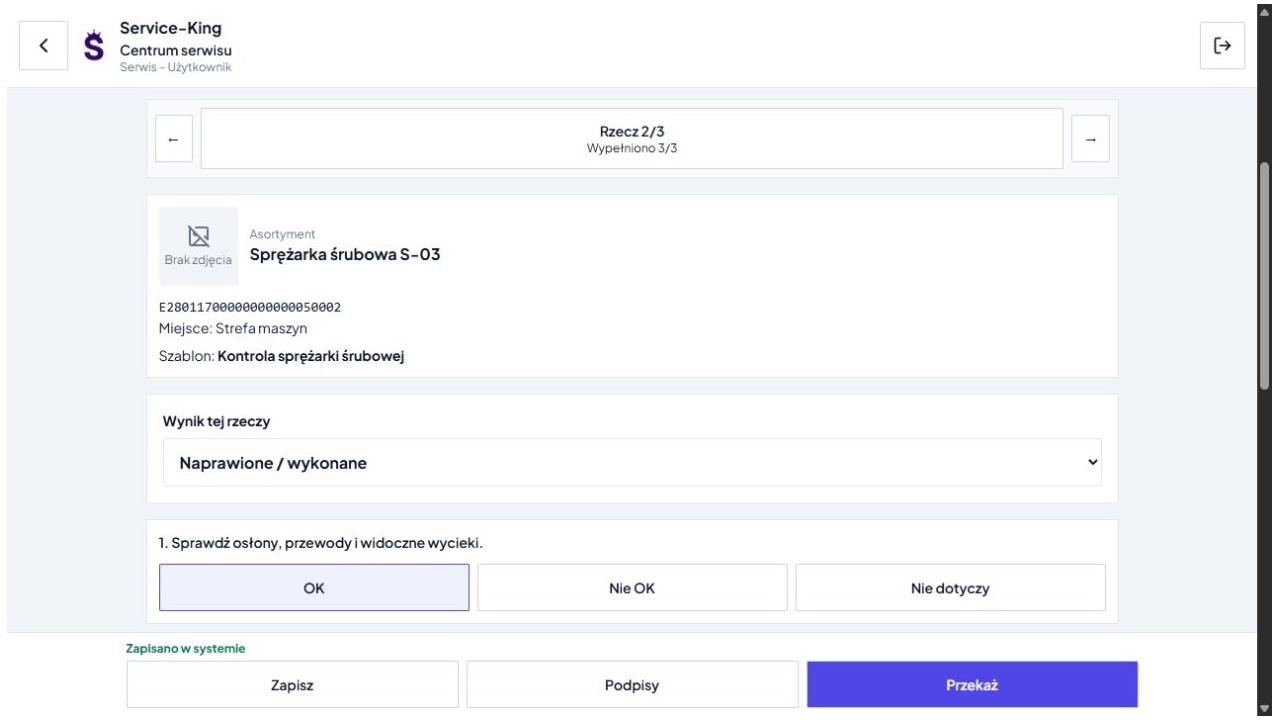
Second of three things in a Service-King service request with result and checkpoints
Several devices in one report, separate result for each item.
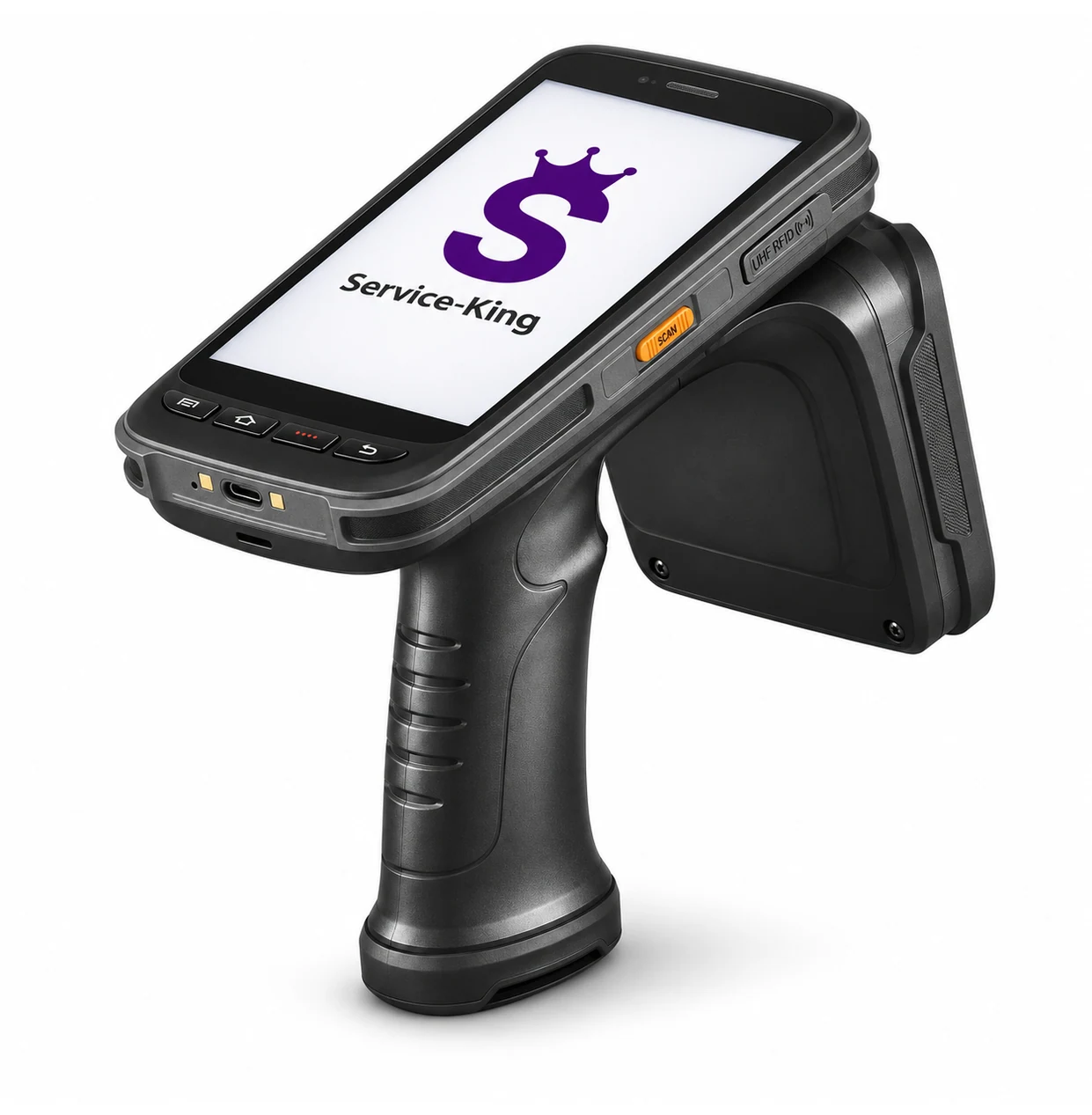
Black handheld UHF terminal with handle and Service-King logo on screen, on white background
Example UHF terminal for identifying tagged equipment. Enlarge photo ↗

On device and in the field

Phone, computer or compatible handheld terminal.

Large buttons and navigating through items make it easier to work with the device. We select identification for the equipment: QR camera, code scanner, NFC or UHF reader.

The user is working within the permissions of his account. Sees the save status, a a sketch of the execution on the device helps you return to the work you started.

After an unconfirmed operation, you check the save result before trying again. The basis for further service is the data confirmed in the system.

Device context

Before work, check what has happened to the machine.

The order defines the scope of service and the machine card collects it device data, location, components, log and documentation.

Exchange history and previous comments help prepare the next intervention. Information about execution stays with the correct order and device.

See Machinery fleet
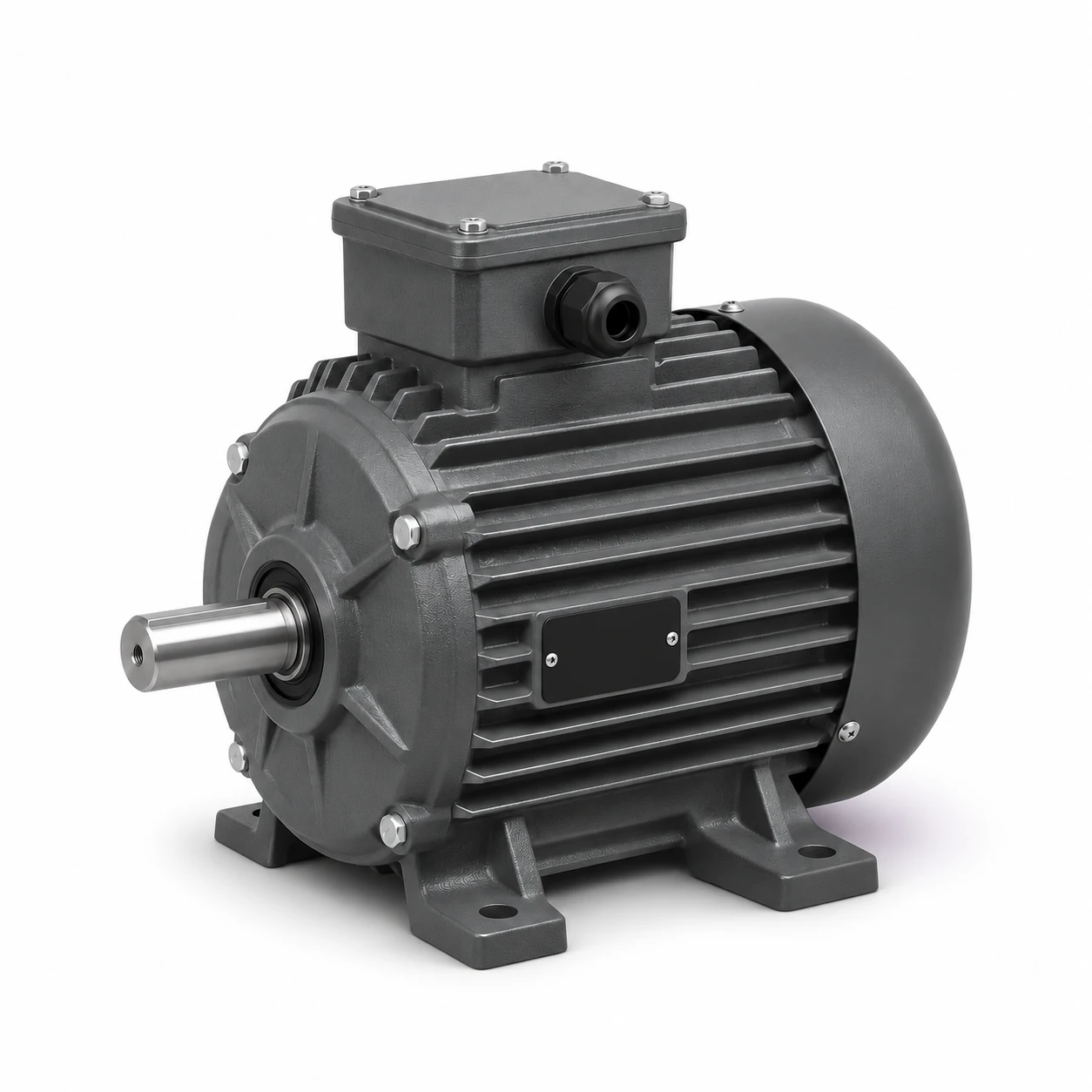
Graphite industrial engine with small marking on white background
A device in the register may have a card, marking and service history. Enlarge photo ↗

Preparation for work

Machine parts. Tools for the technician.

Please check before your visit available employee components and equipment. Each workflow has its proper assignment and history.
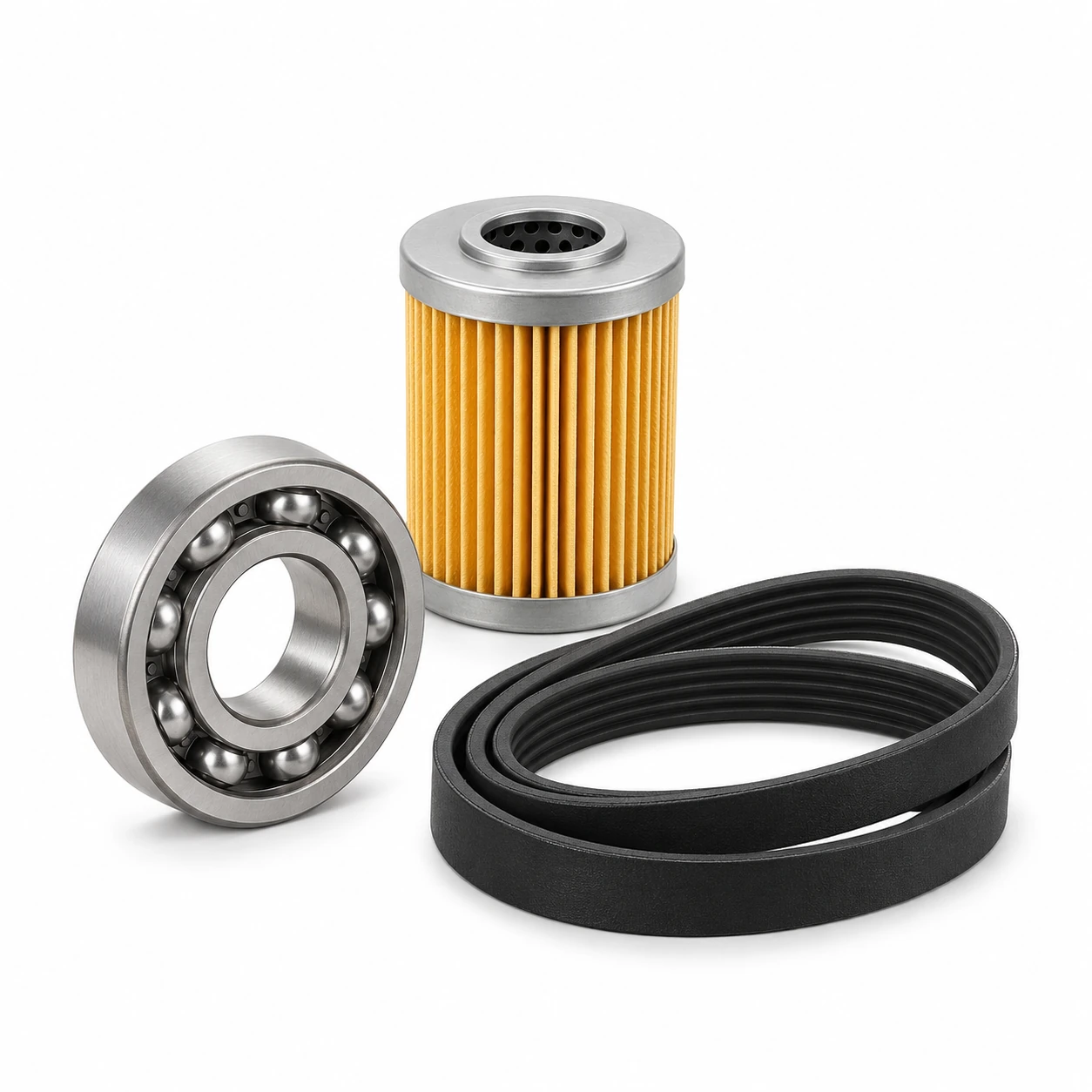
Bearing, filter element and drive belt arranged on white background
Sample maintenance spare parts. Enlarge photo ↗

Part from stock or employee equipment

In the machine parts workflow, you select the source, the element and save the assembly or replacement. Old assembly receives status and further assignment.

See exchange support
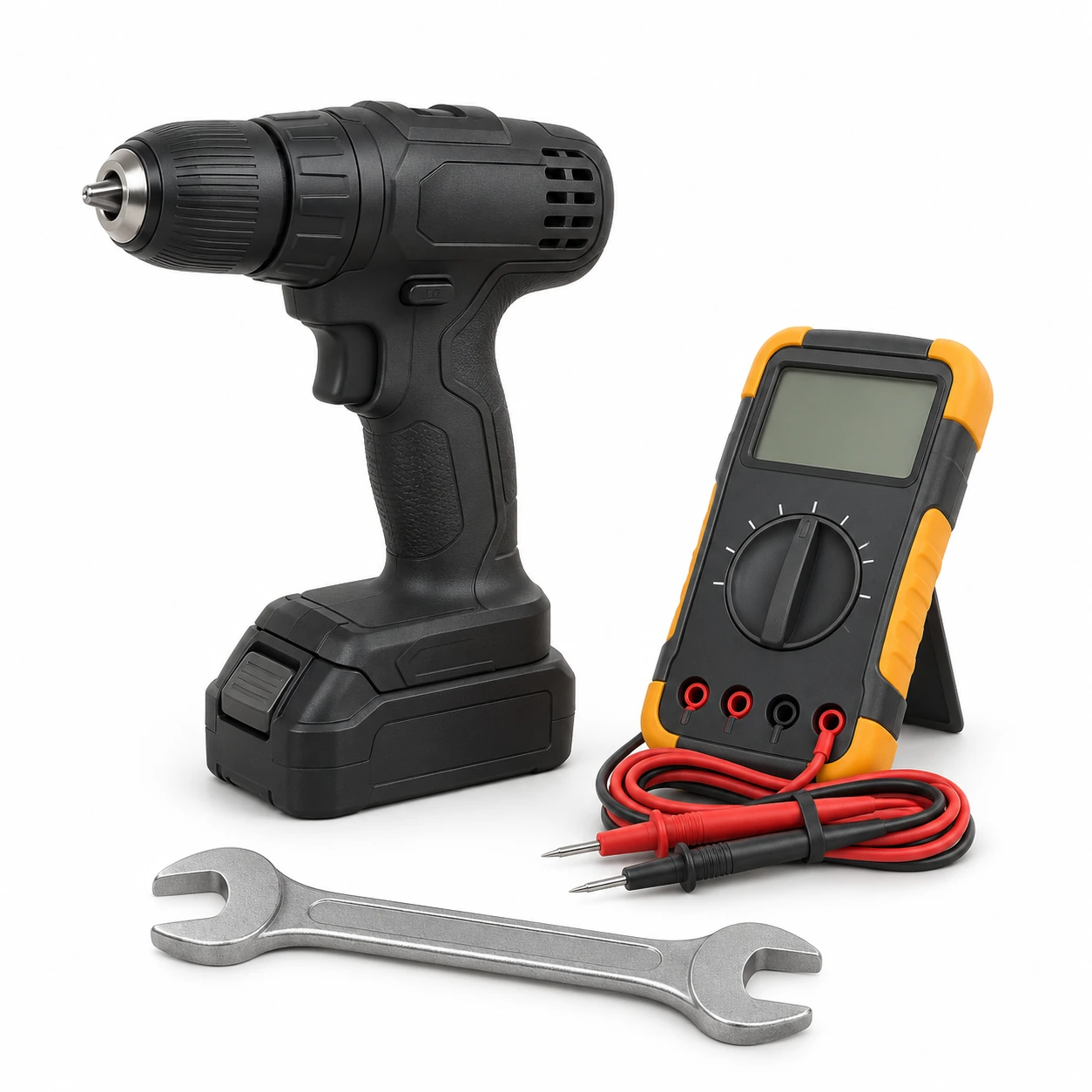
Drill, meter with wires and wrench on white background
Technician tools have an assignment and workflow history. Enlarge photo ↗

The right drill, gauge and wrench

You are checking specific items issued to the technician. UHF and an additional code may lead to one record, making it easier to recognize the item.

See tool control
Check the hall and workshop equipment
Sample data in the applicationEnlarge preview
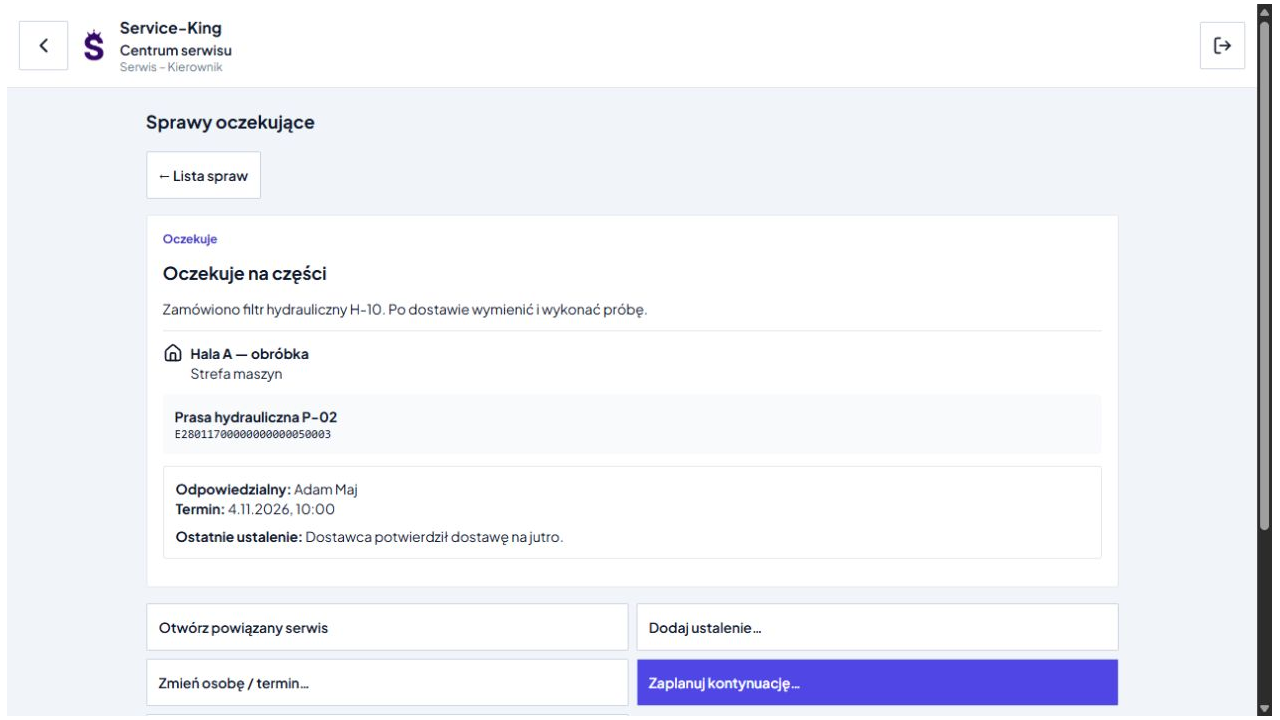
Hydraulic Filter Pending Case at Service-King with Responsible Person and Due Date
Waiting for a part has a reason, a responsible person and a follow-up deadline.

Partial execution and further operation

Part didn't arrive? The case continues.

During your visit, you finish checking two machines and the third one is waiting for a filter. You write down the result of each item, reason for further work, responsible and deadline.

The visit can be partially settled. The need remains open in pending cases, and the manager sees the findings and can plan for follow-up.

The unfinished repair remains serviceable even after the technician's visit is completed.

Receipt and summary

Signatures and arrangements for the work performed.

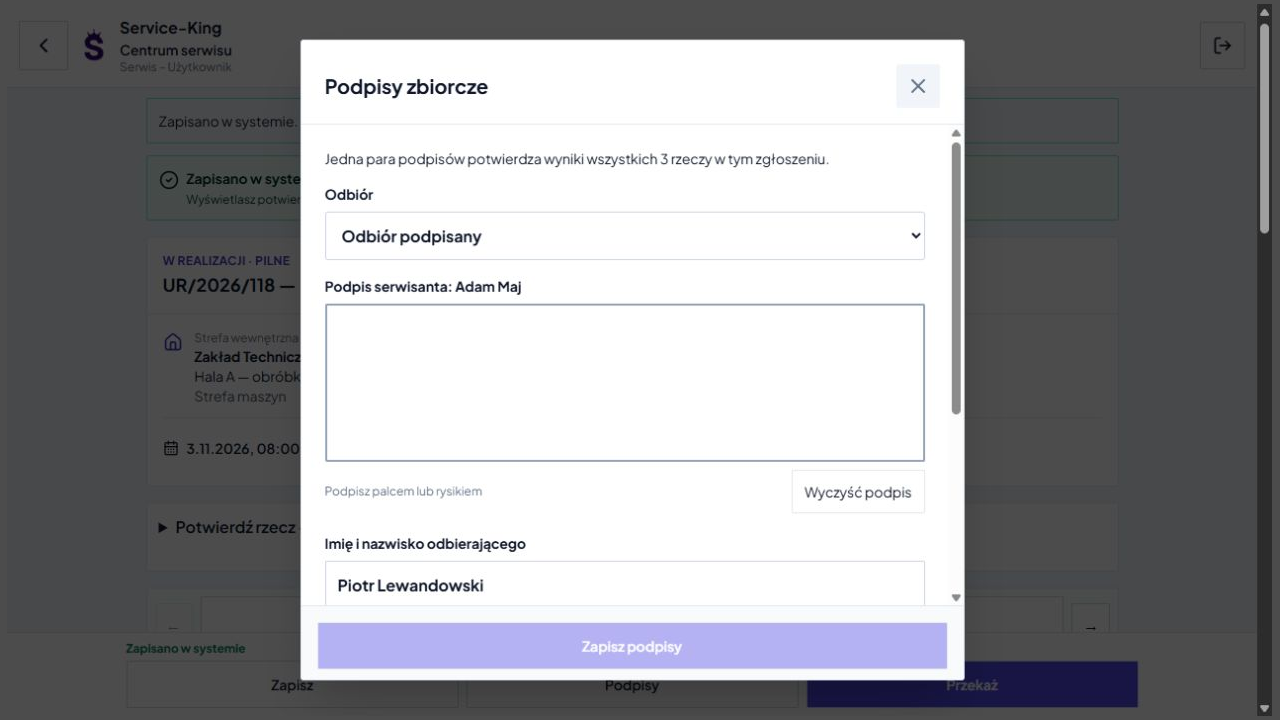
Default one pair of signatures covers the results of the entire application. You can choose collection for each item individually before you start signing.

Consistent receive mode

The system saves the selected service mode and suggests the recipient's name for the next item.

Absence or refusal to collect

You write down the method of receipt, justification and deadline for explanation. The contractor's signature and the manager's decision remain part of the workflow.

PDF summary and history help convey information about activities, results and collected confirmations.

View reports and circulation history
Sample data in the applicationEnlarge preview
Bulk signatures in Service-King with contractor field and recipient name
One pair of signatures can confirm the results of the entire report. Zoom opens the entire screen.

Questions about the work of the UR team

Do we have to implement RFID immediately?
You can start with records, orders and QR codes. We choose UHF where it is useful to read many marked items or quickly identify equipment.
Can one service cover several devices?
Yes. Each thing has its own scope, score, notes and photos. Signatures may apply to the entire report or to individual devices.
Can I have a different procedure for the compressor and the zone?
Yes. Templates can be general, per zone or department, or per equipment by product name. You choose the appropriate points and frequency of service.
What to do if parts are missing or the recipient is absent?
You record the correct result or collection method, reason, person and date for further service. Waiting for the part and clarifying the receipt remain issues to be resolved.
Will every phone read UHF and NFC?
UHF requires an appropriate reader. NFC depends on the device and browser. The camera can read QR in supported application mode.
Does the "done" mark allow the machine to work?
The performance record documents the work. Approval of the device and updating its status require an appropriate decision of an authorized person and the plant's procedures.

Free consultation

How do you share reports and knowledge about repairs today?

Show us your current failure and inspection workflow. We will choose templates, markings and operating steps for your team's work.

  • What do you support? Machines, zones and equipment.
  • Who's participating? Operators, managers and technicians.
  • Where does information get lost? Submissions, parts, results or receipt of work.

To start, all you need is a description of one report and the approximate number of devices, locations and service people.

Let's talk about your UR

Write what you want to organize. We will determine the scope of the free consultation.

Website language

Choose a language.