Skip to content
Service-King

Inspection of tools and equipment

Track your tools from check-out to return.

Recognize a specific piece, assign it to an employee or workplace and keep the operation history. Service-King combines issues, returns, confirmations, service and equipment checking in one system.

  • You know who the equipment was issued to
  • You check what came back
  • You see what remains to be settled
Visualisation of an RFID station for issuing and returning tools.
Compare the workflow before implementation and with RFID.

Before and after

See how RFID changes equipment handovers.

Two short videos compare manual handling with RFID reading when equipment is issued and returned.

Before

Paper records, queues and unanswered questions.

The queue grows, and every uncertainty means more searching, retyping and questions about equipment.
  • Handwritten equipment issue records
  • Queues at the issue counter
  • Difficulty reading dirty or damaged barcodes
  • Manually identifying the person collecting equipment
  • No up-to-date control over the number of items issued
  • Uncertainty about whether an employee may collect an item
  • Missing items only emerge when returns are reconciled
  • History scattered across paper, spreadsheets and the team's memory
After

RFID reading and controlled equipment handovers.

Place the equipment on the counter and present the employee card. The read is recorded, and the handover can be checked against permissions and limits.
  • Fast record keeping and straightforward company asset control
  • Automatic RFID reading at issue and return
  • Employee identification using an RFID card
  • PPE issue control and limits on collection quantities
  • Product access based on employee permissions
  • Complete history and automatic issue, collection and return reports
  • Quick visibility of missing items and outstanding returns
  • Less retyping and fewer errors at shift handover

You start with a specific item

Same model. Different tools and different histories.

Two identical power screwdrivers may be assigned to different people. In Service-King, each has its own record and identifier, so you can follow the right item’s movements.

  • Code and serial number allow you to distinguish pieces of the same model.
  • Photo, documents and instructions stay with the tool.
  • Operation history shows check-outs, returns, and reassignments.
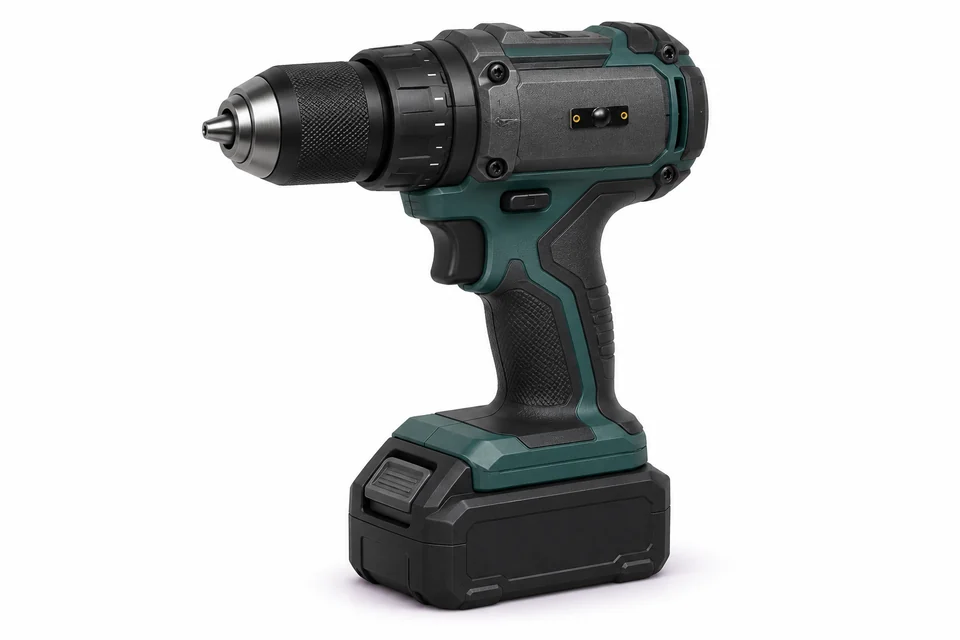
Power screwdriver with small black RFID PCB tag on housing
Example of marking a tool with a single PCB tag.
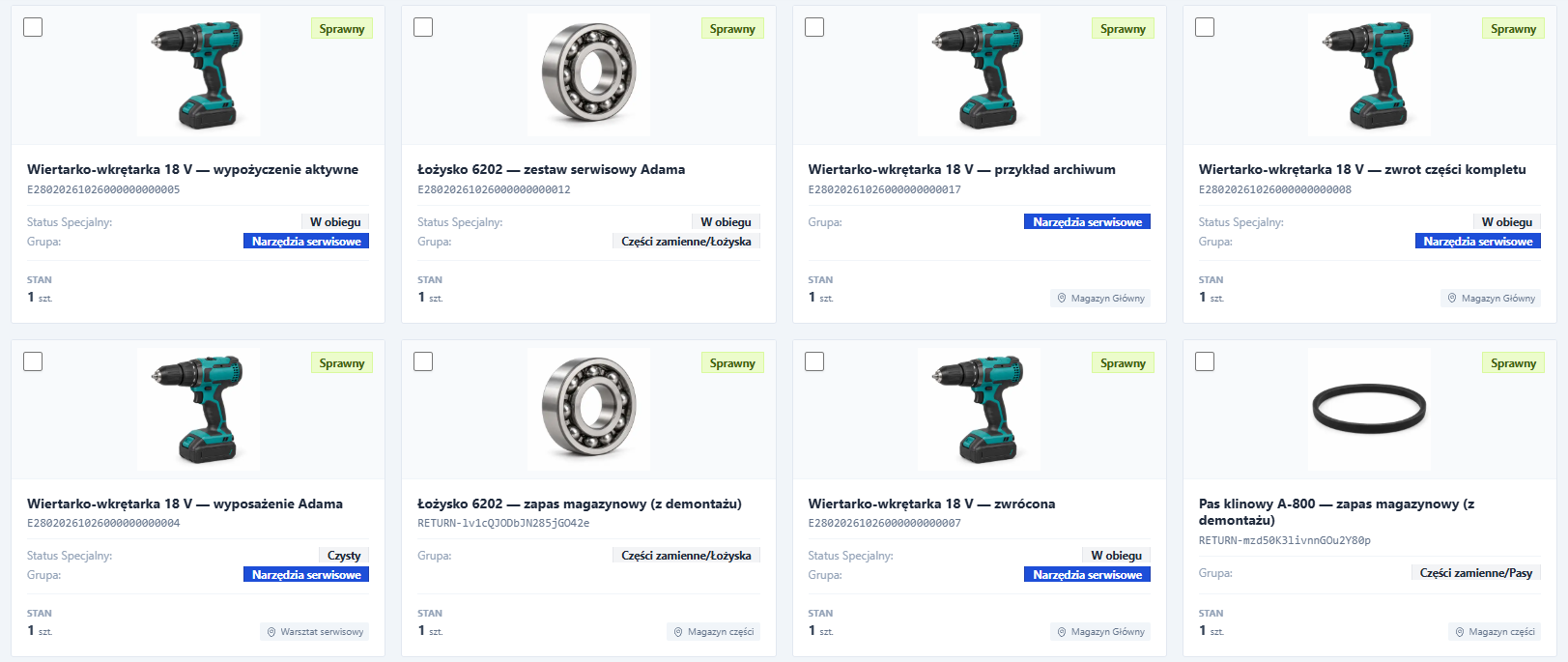
Service-King application viewEnlarge preview
Specific toolkits with codes, status and assignments
Actual system screen on sample data. Similar power screwdrivers have separate codes and histories.
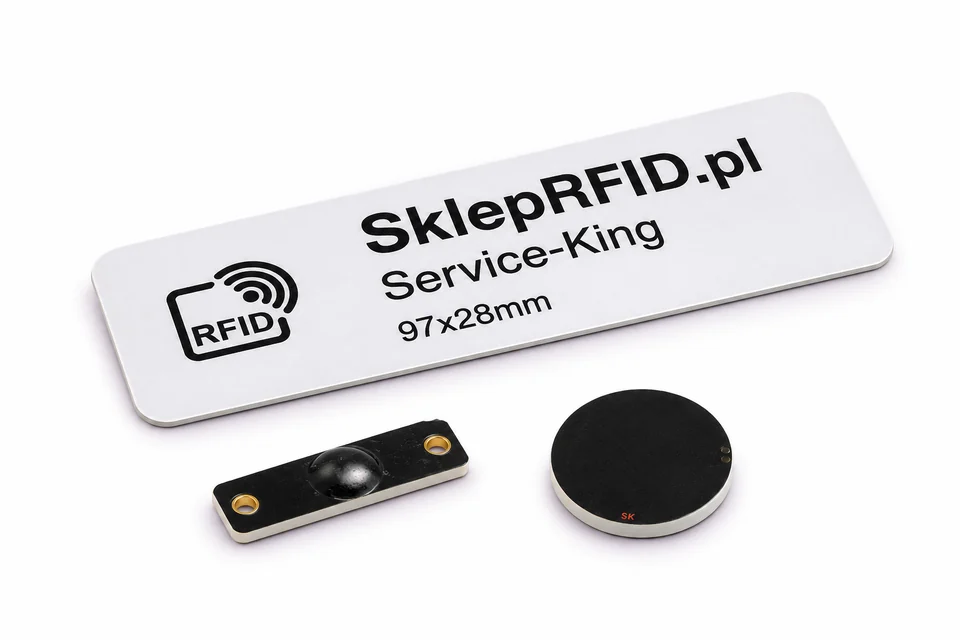
Sample RFID tags: black PCB tag, round tag and Service-King tag
The selection of the marker and mounting depends on the surface and working conditions. The label shown measures 97 x 28 mm.

Choose the reading method for your work

One record. UHF RFID and additional QR.

Both designations can lead to the same thing. You choose the reading method appropriate to the task.

UHF to read many things

The handheld terminal helps to collectively check marked equipment, e.g. in a warehouse or service vehicle.

QR for single tool

Use your phone to open the appropriate record and check information about this item.

You can also use code scanners and NFC on supported devices. We select a metal marker for a specific tool.

Issue → confirmation → return

You know what was released. And what remains to be settled.

Every operation connects recipient, specific items and document. When returning, you can accept all or only part of the issued equipment.

  1. 01

    Recognize tool

    Read the marking and select the correct record.

  2. 02

    Select recipient

    Indicate the employee and the items you give him/her.

  3. 03

    Confirm check-out

    Confirm the operation. In the configured workflow, use a signature on the screen or authorization with an employee's card.

  4. 04

    Accept return

    Select the items you want to return, the receiving location and the status you need.

Example of a partial return

Three tools released. Two are back.

You accept a power screwdriver and a grinder. The meter remains assigned to the employee - it does not get lost in a closed document.

  • Drill/driverReturned
  • Angle grinderReturned
  • Measuring instrumentTo be settled

The diagram illustrates an example circuit. Confirmation of receipt is linked to the operation and document.

Employee, warehouse, construction, car

Check the person's equipment. View assigned seats.

You can see it in the employee's file current items and property entrusted for a longer period of time. It is easier to prepare the check-out, transfer of duties or settlement of equipment.

  • Warehouses and branches you map to the location structure.
  • Construction sites and service cars may have their own assigned equipment.
  • Employee portal provides hardware preview according to account and permissions.

Saved assignments and history show circulation between places. Continuous location tracking requires separate hardware selection and integration.

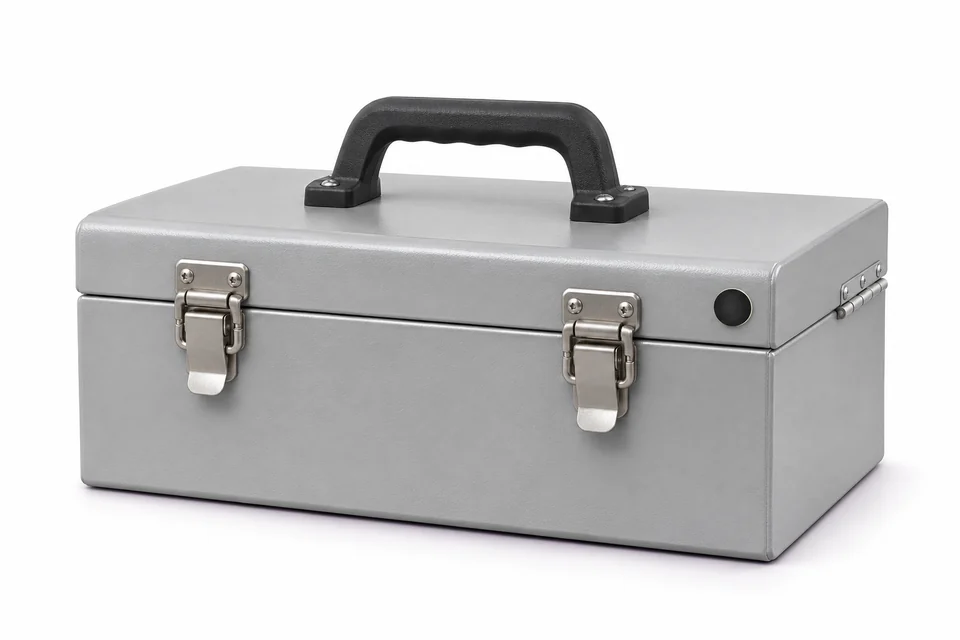
Metal Tool Box with Discreet Round RFID Tag
You can also tag a box or service equipment.
Service-King application viewEnlarge preview
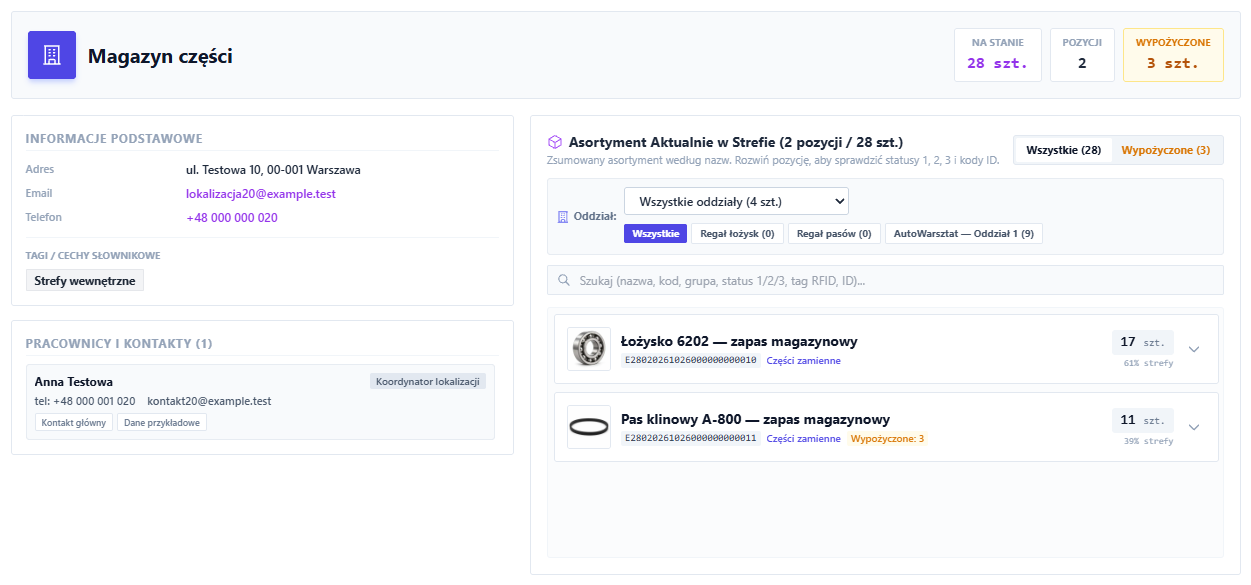
Parts warehouse with quantities, rentals and division into departments
Sample parts warehouse in the system: status, items, rentals and division into places.
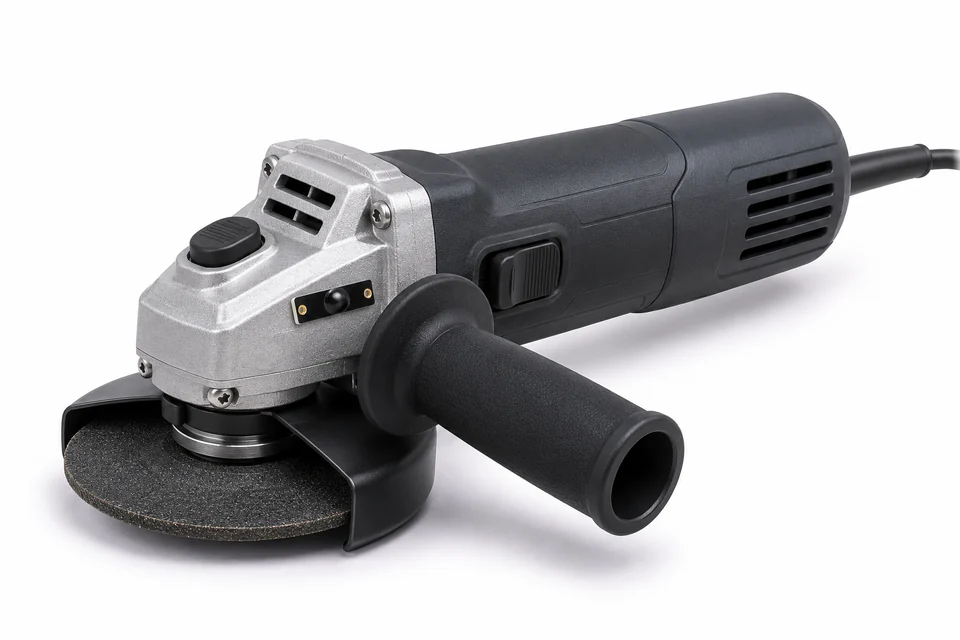
Angle Grinder with Small Black RFID PCB Tag
The marking remains with a specific item even in its service history.

You also have control after the return

Take care of the condition of the tool, parts and documentation.

You record the return of equipment and its readiness for next use separately. With the tool, you can keep appointments, your own statuses and documents needed for further work.

Service from plan to approval

Plan your visit according to the template, indicate the contractor and date. Save the results of the activities and photos, and then confirm the execution. One visit may cover several things with separate results and collective or individual signatures.

Parts, replacements and disassembly

Record the assembly, replacement and disassembly of parts. Some may also come from the employee's equipment, which facilitates the operation of the mobile service.

Dates, statuses and documents on equipment

Store instructions, documents, needed dates and your own statuses. You adjust the scope of control to your company's way of working.

Different rules for different things

Return tools. Materials to be settled.

You are driving in the same system unique pieces and quantitative assortment. You adjust the check-out rules to the type of equipment.

Return equipment

Power screwdriver, meter, grinder

You follow a specific item, its recipient and history. In the case of a partial return, the remaining equipment is still waiting for settlement.

Quantity and non-returnable items

Drills, discs and materials

You settle the quantity of the product issued. Limits per employee help you control consumables check-outs.

Quantity thresholds for the assortment

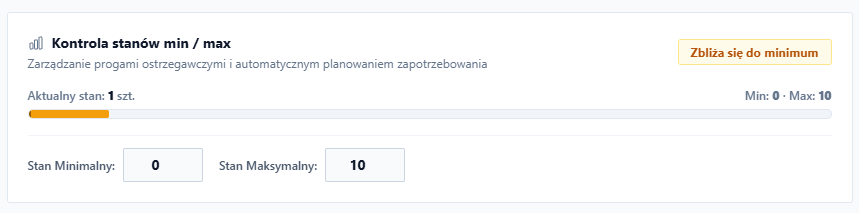
You can set the minimum and maximum status for the item. You check on the screen current quantity and saved thresholds.

Service-King application viewEnlarge preview
Settings of minimum and maximum states for the assortment item
Actual view of quantitative threshold configuration on sample data.

Quick equipment check

Check the set. Explain what's missing.

Select internal zone or branch, read the marked items and compare the result with the records. You can divide a larger list among the participants.

  1. Read equipmentCheck the indicated scope, e.g. tools in the service truck.
  2. Compare to listSee differences between reading and writing equipment.
  3. Explain the gapsAdd a note, photos and person responsible. Use the circulation history.

The search for and clarification of differences may continue after the stocktake is closed.

View the complete RFID stocktaking process
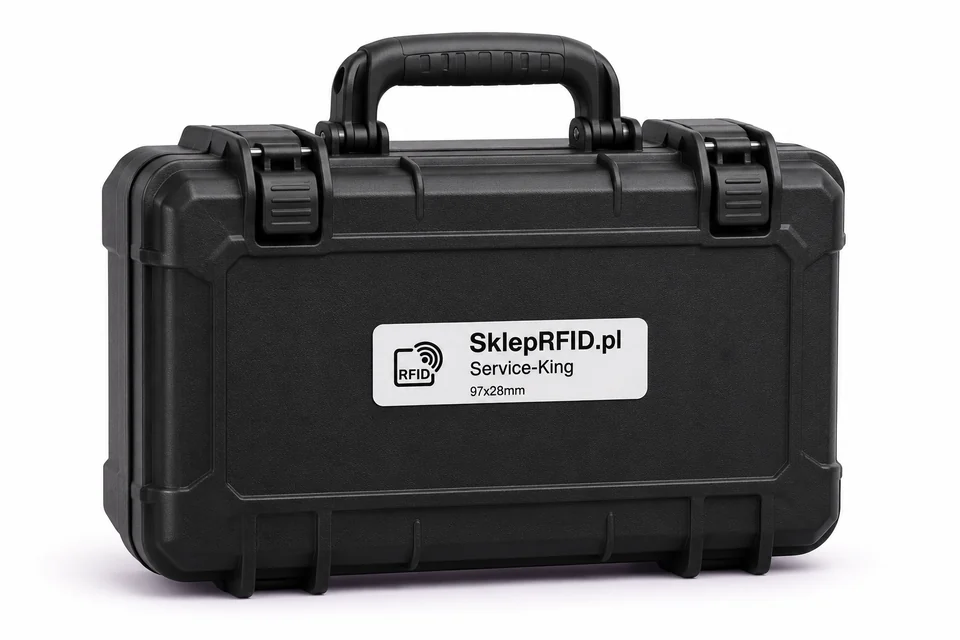
Equipment case with white RFID Service-King label
The suitcase marking identifies the suitcase. To check individual tools, we also mark its contents.

Daily operations data

History helps complete the tool cycle.

Instead of replaying conversation events, you check saved issues, returns, transfers and documents.

01

Who has the equipment?

Check the items assigned to the employee and the equipment saved in a given location.

02

What's left to return?

Go back to the operation and see which items have been accepted and which remain to be settled.

03

What happened to item?

Review the tool's history and related documents to determine next steps.

Learn about reports and circulation history

Start with one process

Adjust system to your equipment circuit.

First, you just need to determine what you check out, to whom and how you accept returns. The selection of signs and devices results from this way of working.

  1. Tidy up your starting pointList of tools, workers, warehouses and places of use.
  2. Select markings and rulesTags, reading method, receipt confirmations and return statuses.
  3. Check the workflow in practiceTest the check-out and return on selected equipment, then expand the scope.
Hand tools with a discreet RFID tag on one of the tools
Hand tools can also receive individual markings matched to their surface.

Before deployment

Some practice questions.

Can I tell several identical screwdrivers apart?

Yes. Each piece can have its own record, marking and serial number. This allows you to check the history of a specific power screwdriver, even if the company has several identical models.

Can I combine UHF RFID with a QR code?

Yes. UHF and an additional QR may lead to the same record. UHF reading requires an appropriate reader and markings. QR is useful for a single item checked with a phone.

Will I accept returns of only parts of the tools?

Yes. You choose the items you want to return, the place of receipt and the status you need. The remaining items are still waiting to be settled. History shows what has been spent and what has already been returned.

Does saved space mean live hardware tracking?

The location in the register results from saved assignments and operations. Real-time tracking, gates, tag locating or automatic lockers require appropriate hardware selection and integration.

How does status and permissions control work on check-out?

You can maintain tool statuses, test dates and employee permissions. We determine and verify the scope of their checking and possible blockages during check-out for a specific circulation.

Will I support tools rented from other companies?

Yes, in the related rental module you manage equipment with business partners, deadlines, holdings and returns. See rentals and rentals.

Does the entire system work without the Internet?

We check the scope of operation when connection is lost for the selected device and process. Securing selected readings or sketches does not mean fully supporting the entire application without the Internet.

Free consultation

Let's talk about tools in your company.

Tell us how you check out and settle equipment today. We will discuss records, markings and method of confirming operationsthat match your job.

  • What do you want to control? Employee tools, parts, materials or equipment.
  • Where does the equipment work? Warehouse, branches, construction sites or service cars.
  • What makes your job most difficult? Shortages, returns, documents or condition of tools after use.

To start, all you need is a short description of the workflow and the approximate number of tools and users.

Book a free consultation

Write what you want to sort out. We will contact you to arrange the details of the conversation.

Practical knowledge

Learn more about this workflow.

All knowledge-base articles

Next step

Link tool control with the rest of the circulation.

Watch the full system presentation.

Service-King check-outs and returns. You will start the video after agreeing to multimedia. Open in YouTube

Website language

Choose a language.