

Who has the equipment?
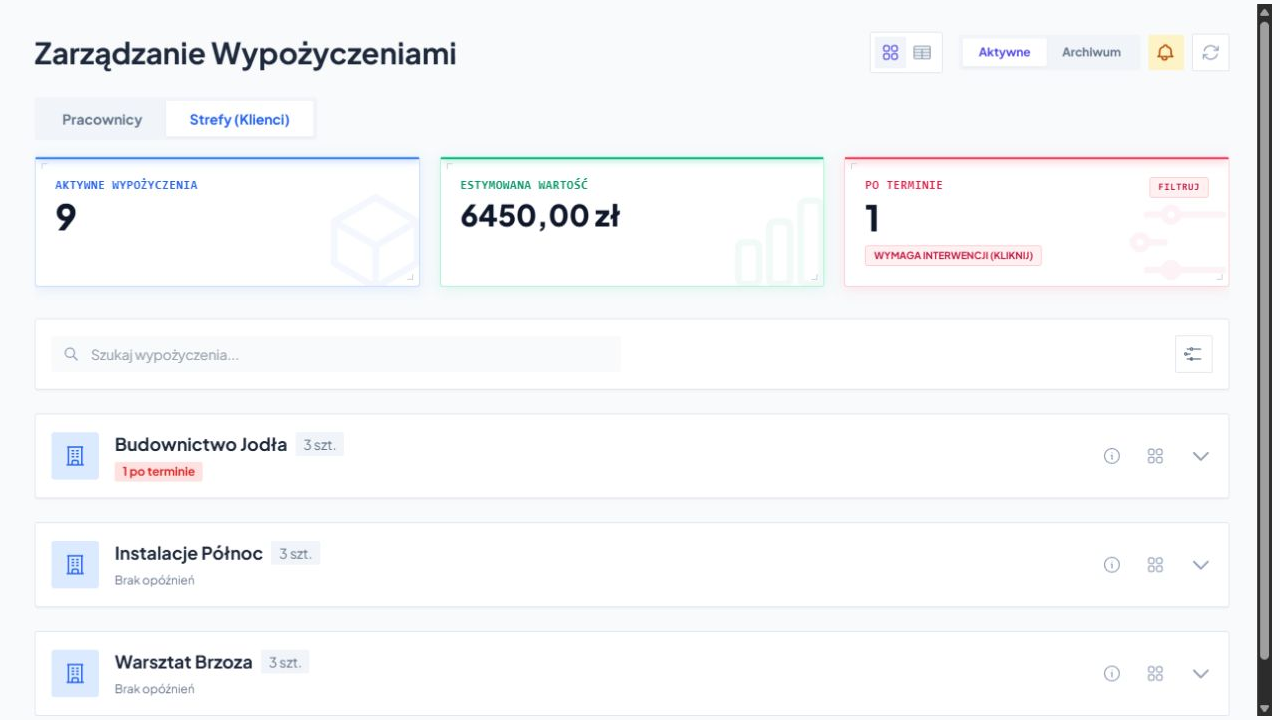
You check employees' and customers' belongings separately. In the group layout, you see the recipients, the number of items and information about delays.
Equipment hire and loans
Do you rent tools to customers or give equipment to employees? Service-King puts things in order check-outs, time control and returns.
You check the recipient, issue date and things that need attention. Each item has its own ID, even if you have several dozen of the same drills.
Information for everyday work
You go from the list of recipients to the thing that needs explaining. The search engine and filters help quickly narrow your view.
You check employees' and customers' belongings separately. In the group layout, you see the recipients, the number of items and information about delays.
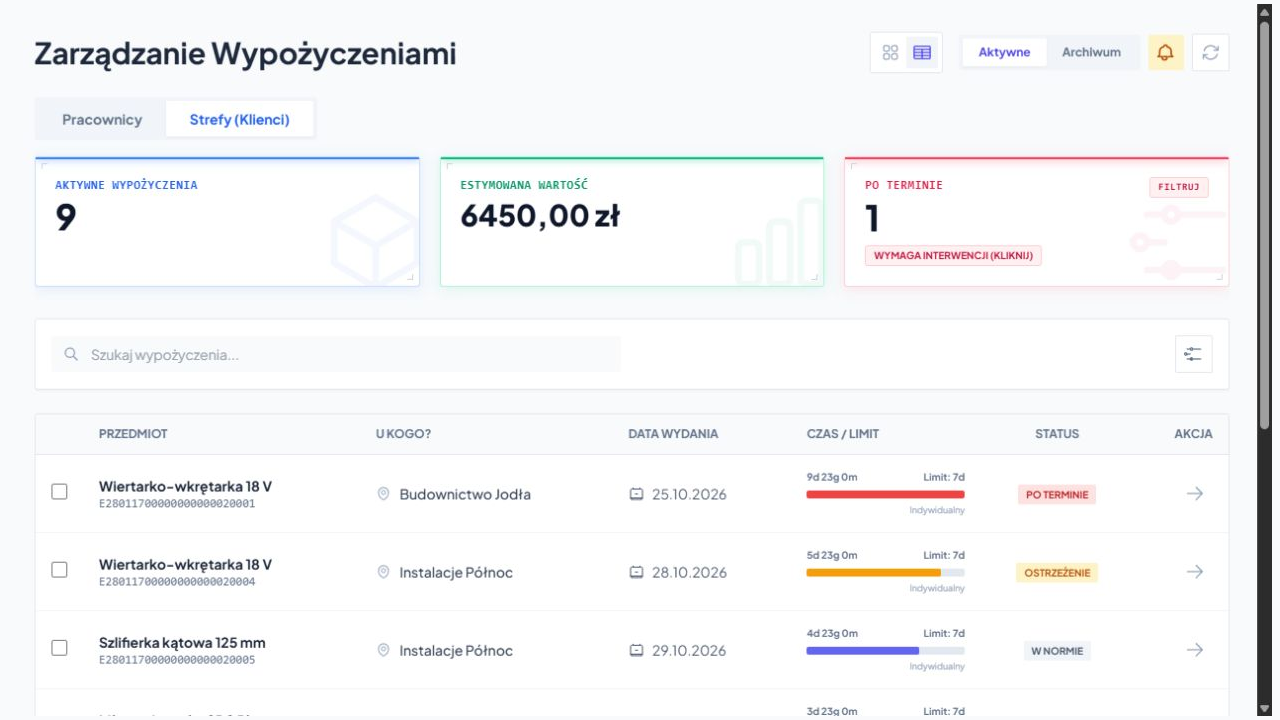
The name and individual code link to the correct item. You don't confuse two tools of the same model.
Issue date, time since transfer and limit show what is normal, near due date or requires contact.
Value in summary applies entrusted equipment. You can check the rental charges separately in the history of completed returns.
From issue to close of circulation
You're connecting specific item, recipient, time limit and documentation. Subsequent operations remain in the system.
You write down the name, serial number, status and location. The main identifier and an additional code, e.g. UHF and QR, can lead to the same thing.
You enable time monitoring. You select limits and charging rules for the organization, client, group and individual equipment settings.
You specify a customer or employee in the appropriate check-out module. You recognize the hardware and the authorized user approves the operation.
You check the recipient, time since issue and due date status. You narrow down your list to things that need to be recovered.
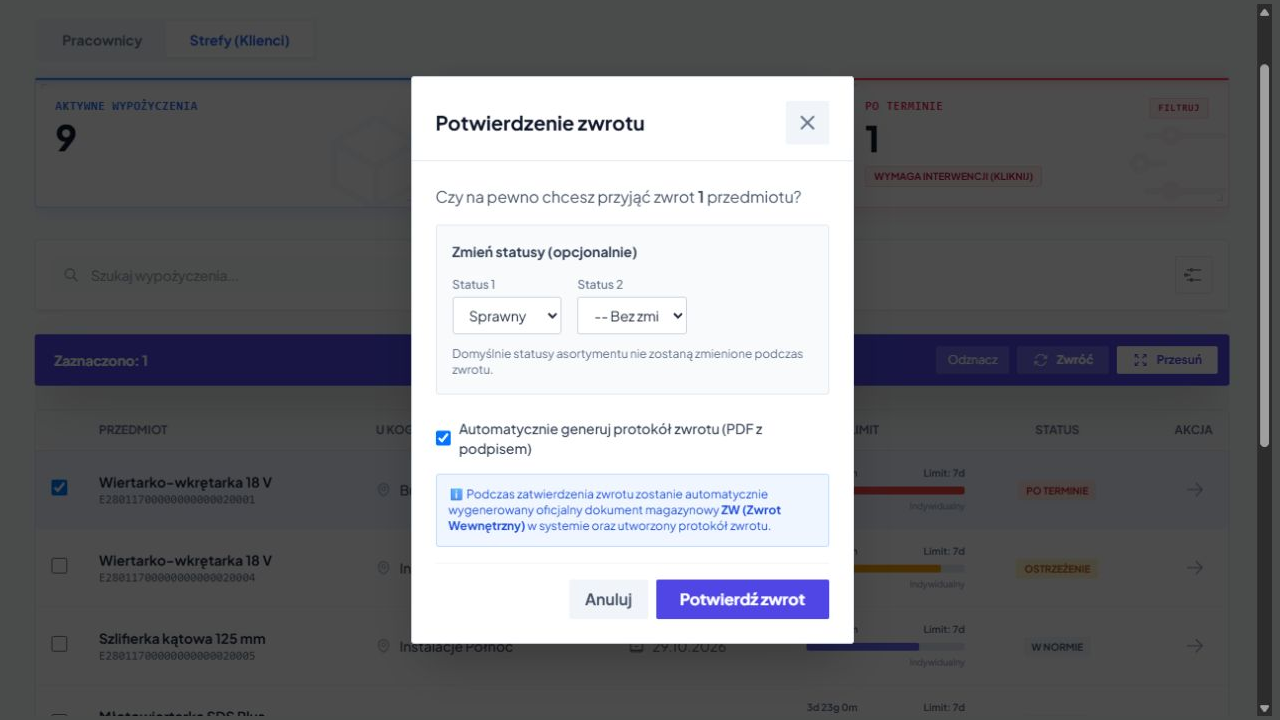
You select returned items and rate the condition. For quantity batch you can accept part; the rest still remains on loan.
The return saves the operation and the WIN document. You can prepare a PDF protocol with a signature and later return to the history and calculations.
Time control
With a monitored position, you can see time since check-out and limit set. Status helps you choose things that require action.
You are filtering held items or searching for a specific code. After setting up rules and shipping exceedance alerts are also available.
More pieces to be released
UHF RFID makes it easy to collect multiple IDs for surgery. The employee uses a handheld terminal or a properly configured reading station.
Depending on your device and screen, they are also available QR, barcodes or NFC. We select markings for tools, measuring instruments, suitcases and other returnable items.
Read recognizes hardware. Recipient, documents and approval moment is set in a workflow tailored to your company.
Discover RFID reading stationsEquipment return and evaluation
Upon return, the staff assesses the equipment and may give a status consistent with the inspection result, e.g., "In working order" or "To be checked."
For a quantity item, you can return part of the lot. The remaining quantity is still available to the recipient.
The ZW document, PDF protocol and signature help later determine when and from whom the equipment was accepted.
Check status and place equipment for operation, inspection or service. You can link the description and photos of the damage to the record or report.
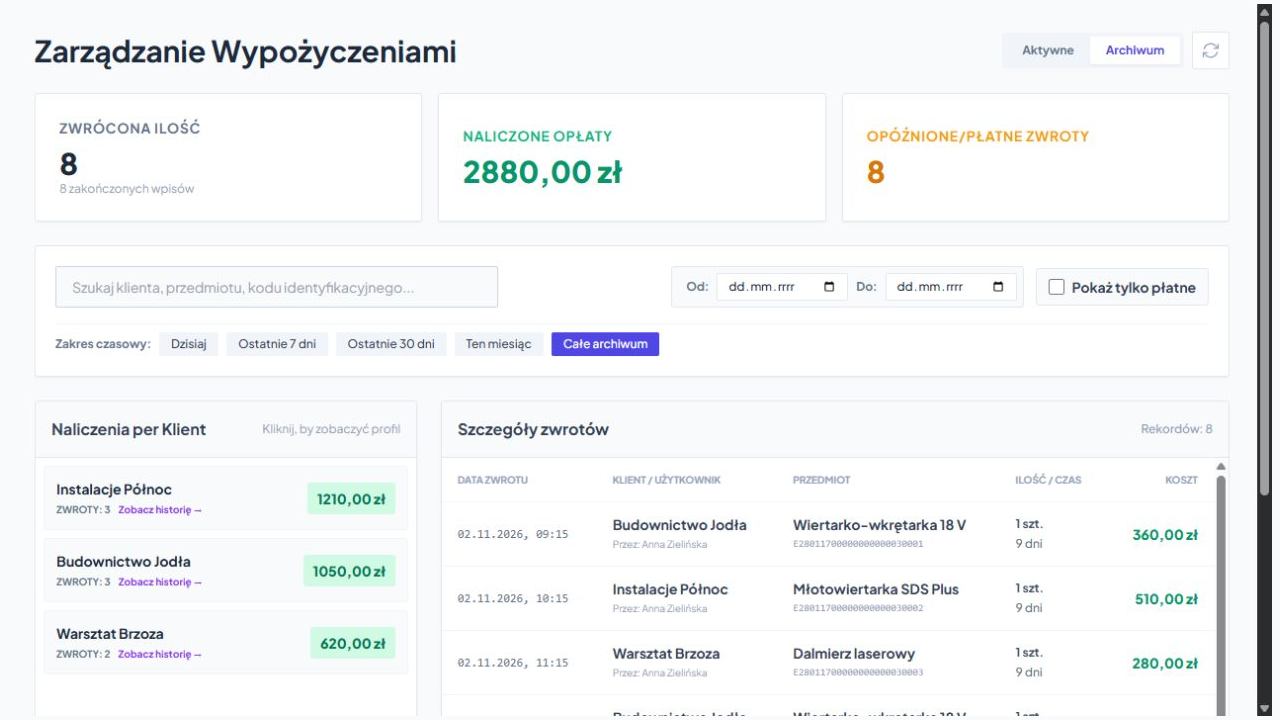
Billing according to your rules
You set rate and billing period. The system calculates the amount according to the started rental periods. The configured hold rate allows you to also take into account exceeding the limit.
You receive settlement verification details with the recipient, in accordance with the set rates and terms of cooperation.
Summary for manager or customer
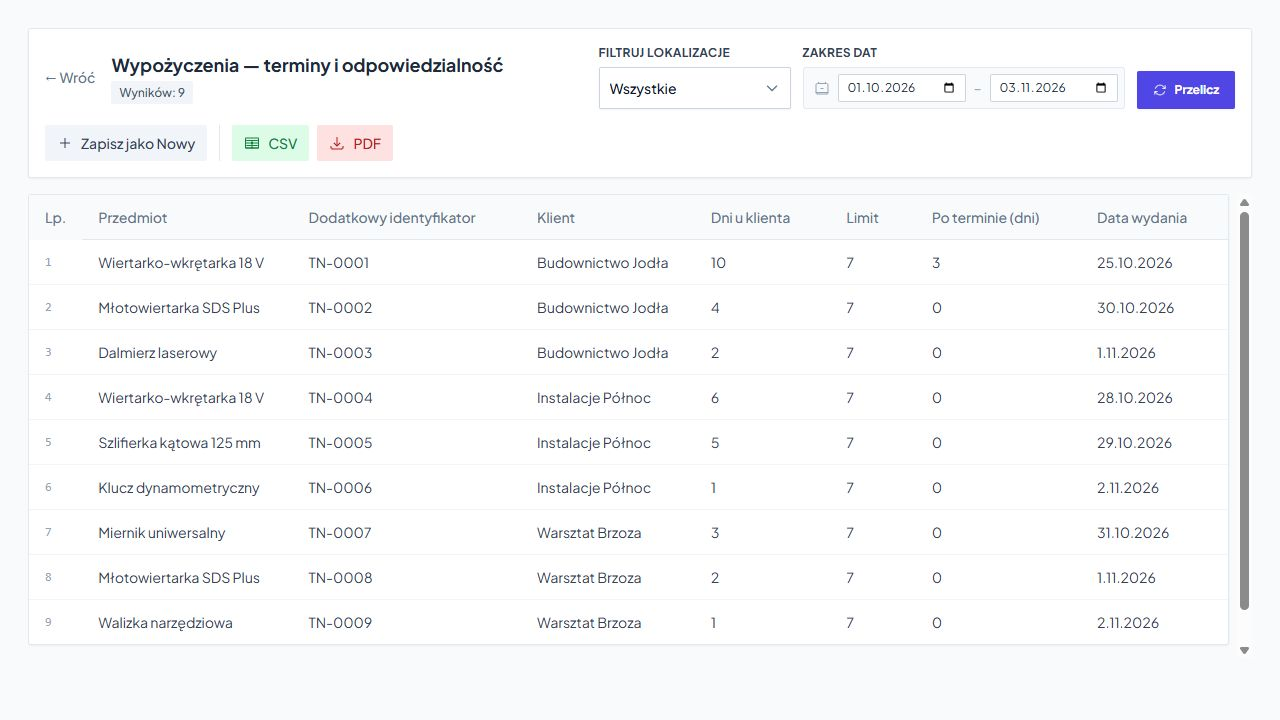
Report compiles items, IDs, recipients, check-out dates, on-site time and limit overruns. You select the columns you need and save the layout as a template.
Clear summary for the recipient or manager.
You open the data in Excel, filter it and use it in further calculations.
Free consultation
Tell us what you rent and how you accept returns. We will choose markings, reading method and circulation for your company's work.
To start, all you need is the approximate number of items and recipients and a description of one rental - from issue to return.
Write what you want to improve. We will determine the scope of the free consultation.
Practical knowledge